
Route 2 of 3
Find candidate listings from a picture
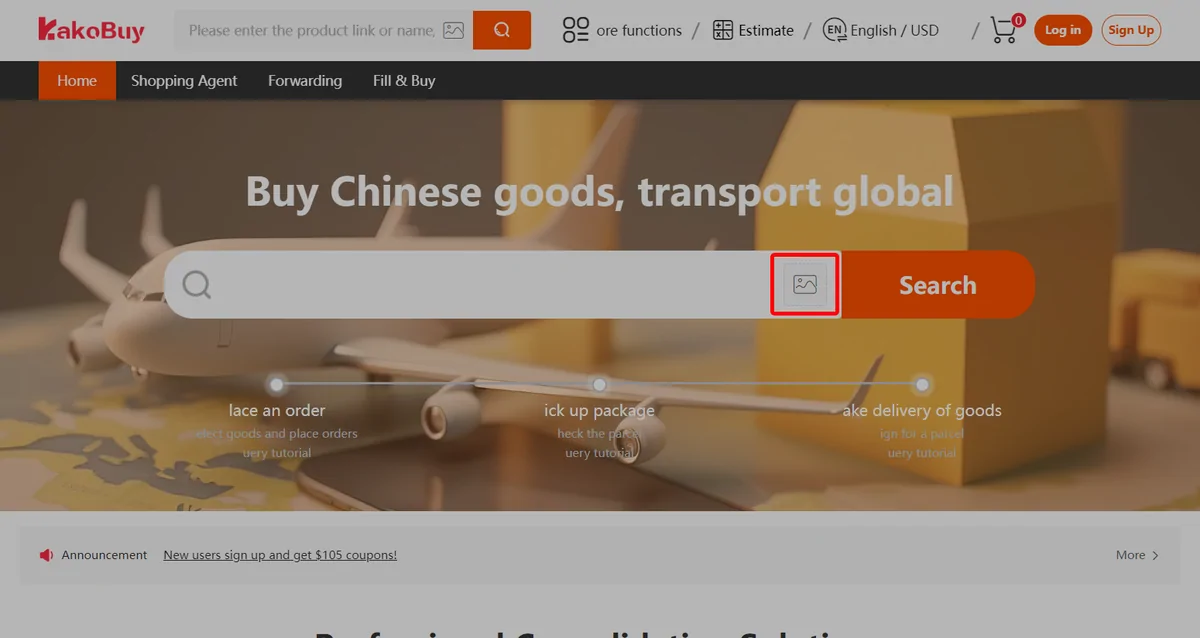
The camera icon inside the search bar uses a picture to suggest candidate listings. Open each candidate to check the seller and the exact variant.
Tutorial images below are older official UI examples. Amounts, offers, routes and account values shown are not current quotes. Open an image for the full-size source.
Where the image route lives
There is no separate page for image search. The entry point is a camera icon inside the same search bar you would paste a link into, on the official home page. The official tutorial dedicates a frame to it, boxing the icon in red, because people stare straight past it.
Upload a screenshot or a saved photo and the engine looks for listings whose cover photos match. The results page looks like a search: a grid of candidate listings, each one a separate seller's item.
A match is a listing, not your variant
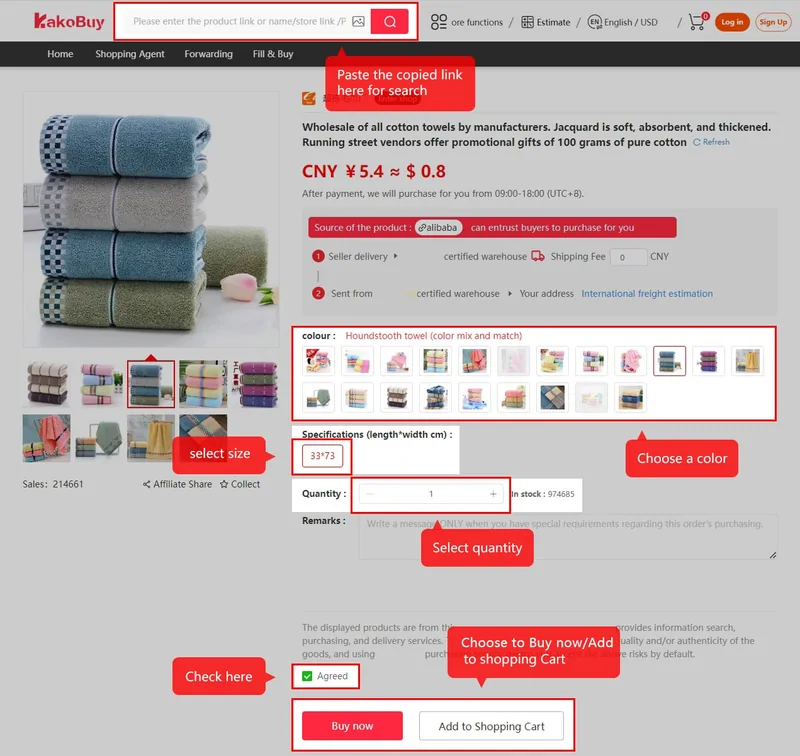
The thing your screenshot shows is usually a specific colourway in a specific size. The thing image search returns is a listing, and the listing is a container: one seller, one cover photo set, and variant menus inside.
So the last metre is on you. Open the match, then find your colour in the swatch row and your size in the specification field. The official tutorial marks exactly these controls with red callouts because this is where orders go wrong.
A variant can be sold out while the listing stays up and matchable. If the colour you wanted is greyed out, the match did its job and the answer is still no.
When a catalogue page beats a screenshot
Image search is the right tool when a picture is genuinely all you have. When what you have is a category in mind, a curated catalogue page is the shorter path: the category route gives you listings to compare, so the matching step is skipped entirely.
The category wall on this site covers sixteen lanes, from sneakers to electronics. Each card lands on a browsable grid of items with product links to verify, which is exactly the thing an image match is trying to reconstruct from pixels.
The two inputs also stack: find the item type on a catalogue page first, then use your screenshot inside the listing to confirm you are looking at the same colourway the seller photographed.
Compare candidates before calling one a match
Keep the reference image beside each candidate’s own listing. Record the seller and product URL, selected colour, material description, measurements and any detail that must match. A shared cover image is weak evidence; a different pocket, closure or size chart can rule a candidate out even when its outline looks right.
If two listings remain visually identical, ask for the detail that distinguishes them rather than choosing by cover photo alone. If no seller can confirm your required specification, keep the result as a lead. Do not describe it as the exact item or submit a substitute without deciding that the difference is acceptable.
After purchase, compare the warehouse photos with this saved specification, not with an unrelated community image. Editorial guidance reviewed 16 October 2026; matching performance and stock are not verified by this site.
Screenshot ready? The camera icon sits inside the search bar on the official home page.
Try the image search